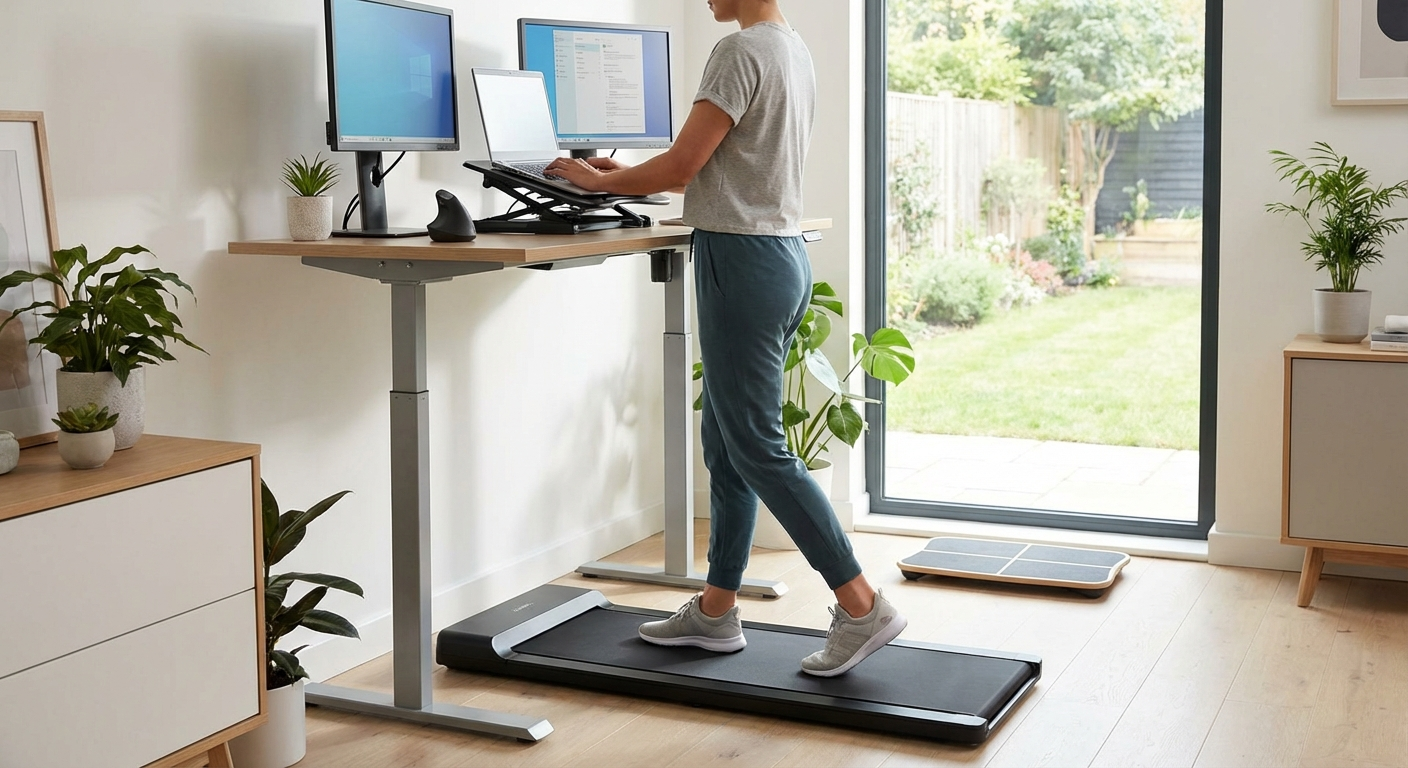
Walking Pad Desk Setup: Complete Ergonomics Guide
title: "Walking Pad Desk Ergonomics: Setup Guide (2026)" slug: walking-pad-desk-ergonomics meta_description: "Walking pad desk ergonomics guide: screen height, keyboard position, ideal walking speed for typing, posture fixes and must-have accessories. Set up right." primary_keyword: "walking pad desk ergonomics" secondary_keywords: ["walking pad desk setup", "ergonomic walking desk", "how to set up walking pad desk"] datePublished: "2026-03-12" dateModified: "2026-03-12" author: "Dr. Alex Chen" og_title: "Walking Pad Desk Setup: Complete Ergonomics Guide" og_description: "Walking pad desk ergonomics guide: screen height, keyboard position, ideal walking speed for typing, posture fixes and must-have accessories. Set up right." og_type: "article" og_url: "https://walkingpadpicks.com/walking-pad-desk-ergonomics" og_image: "https://walkingpadpicks.com/images/og-default.jpg" twitter_card: "summary_large_image" twitter_title: "Walking Pad Desk Setup: Complete Ergonomics Guide" twitter_description: "Walking pad desk ergonomics guide: screen height, keyboard position, ideal walking speed for typing, posture fixes and must-have accessories. Set up right." twitter_image: "https://walkingpadpicks.com/images/og-default.jpg"

By Dr. Alex Chen · Last updated March 12, 2026
A proper walking pad desk ergonomics setup requires your monitor at eye level, keyboard at elbow height, and walking speed between 1.5–2.5 mph for productive typing. The walking pad adds 4–6 inches of height, so most people need an adjustable standing desk set 4–6 inches higher than their normal standing position. Get these three measurements wrong and you trade wrist pain for neck pain.
Most walking pad buyers focus on the pad itself — speed, noise, size, weight capacity. They unbox it, slide it under their desk, start walking, and within 30 minutes they have neck pain. Or wrist pain. Or lower back pain. Not because walking is harmful, but because their desk setup is wrong.
A walking pad changes your body geometry. You are 4–6 inches taller (platform height plus footwear). Your eyes are higher. Your elbows are higher. Your relationship to the desk surface, the keyboard, and the monitor is fundamentally different from sitting or standing. If you do not adjust those three things, you are forcing your body into compensating postures that create strain.
The walking pad itself is the easy part. The ergonomic setup around it is what determines whether you walk comfortably for 4 hours or develop neck pain in 40 minutes. This guide covers every measurement, adjustment, and accessory needed to get it right.
Why Ergonomics Matter More on a Walking Pad
Standing Desk Ergonomics ≠ Walking Desk Ergonomics
If you already have a standing desk, you might assume you can just slide the walking pad underneath and start walking. This is the most common mistake. Here is why:
Height change: The walking pad platform is typically 4–5 inches thick. Add shoes or insoles (another 0.5–1.5 inches) and you are 4.5–6.5 inches taller than when standing on the floor. A standing desk set to the correct height for floor standing is now 4–6 inches too low for walking.
Body bounce: Walking introduces vertical oscillation — your body moves up and down 0.5–1.5 inches with each step. This bounce affects your eye-to-screen distance, your wrist angle against the keyboard, and your perception of monitor stability. None of these exist when standing still.
Arm swing suppression: When you walk normally, your arms swing. At a desk, you suppress that swing to keep your hands on the keyboard. This changes how your shoulders and upper back engage — and if the desk height is wrong, the static arm position combined with walking creates shoulder tension.
Gait adaptation: Walking on a treadmill at slow speeds produces a slightly different gait than walking overground. The belt moves your feet backward, and your body compensates by adjusting posture. If external reference points (screen, keyboard) are misaligned, your posture adaptation compounds with the gait adaptation, creating strain.
The Three Critical Measurements
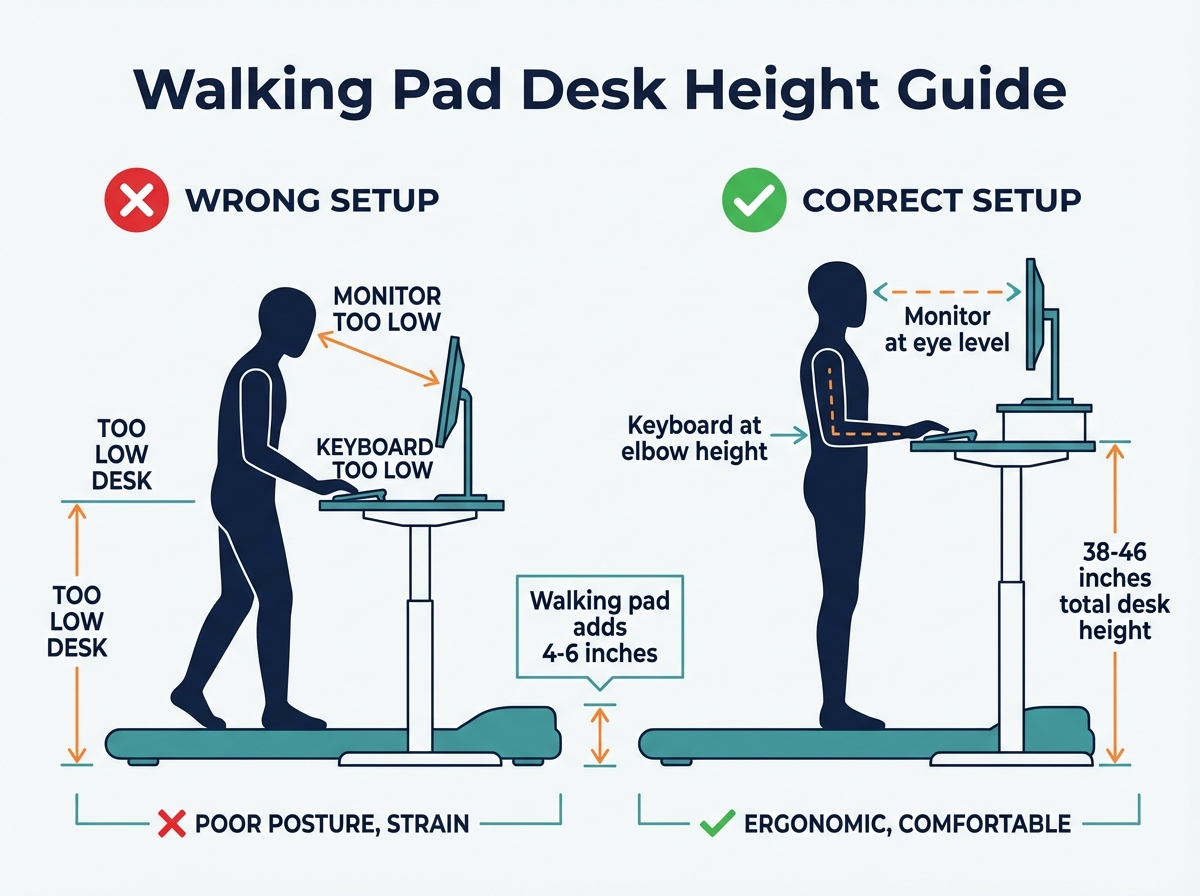 Walking Pad Desk Height Guide: Key measurements for an ergonomic setup.
Every walking pad desk setup depends on three numbers. Get these right and everything else follows.
1. Desk Height: Elbow Height While on the Pad
Target: The desk surface should be at the height of your elbows when your arms hang relaxed at your sides while standing on the walking pad (powered off, wearing your walking shoes).
How to measure:
- Stand on the walking pad (not running) wearing the shoes you will walk in.
- Let your arms hang naturally at your sides.
- Bend your elbows to 90 degrees — forearms parallel to the floor.
- Measure the height from the floor to the bottom of your forearms.
- This is your target desk surface height, ±1 inch.
Typical range: 38–46 inches from the floor (varies by person height and pad thickness).
2. Monitor Height: Eye Level While Walking
Target: The top edge of the monitor should be at or slightly below your eye level while walking on the pad.
How to measure:
- Walk on the pad at your typical working speed (1.5–2.0 mph).
- Look straight ahead, horizontal gaze.
- Mark the wall or use a tape measure to note your eye height.
- Position the top of the monitor at this height. The center of the screen should be approximately 15–20 degrees below horizontal.
Why walking matters: Your eye level during walking includes the vertical bounce of your gait. Standing eye level is slightly different. Measure while walking for the most accurate positioning.
3. Walking Speed: Task-Appropriate Pace
Target: 1.5–2.5 mph for general desk work. Adjust by task type (see the speed section below).
How to find your speed:
- Start at 1.0 mph. Walk for 5 minutes to establish comfort.
- Open a document and start typing. Note your comfort level.
- Increase by 0.5 mph. Walk for 5 minutes, type again.
- Your optimal speed is the fastest pace at which you can type a full paragraph without noticeably increased errors.
Screen Height and Monitor Positioning
This is the single most impactful ergonomic factor. Wrong screen height causes neck pain faster than any other setup error.
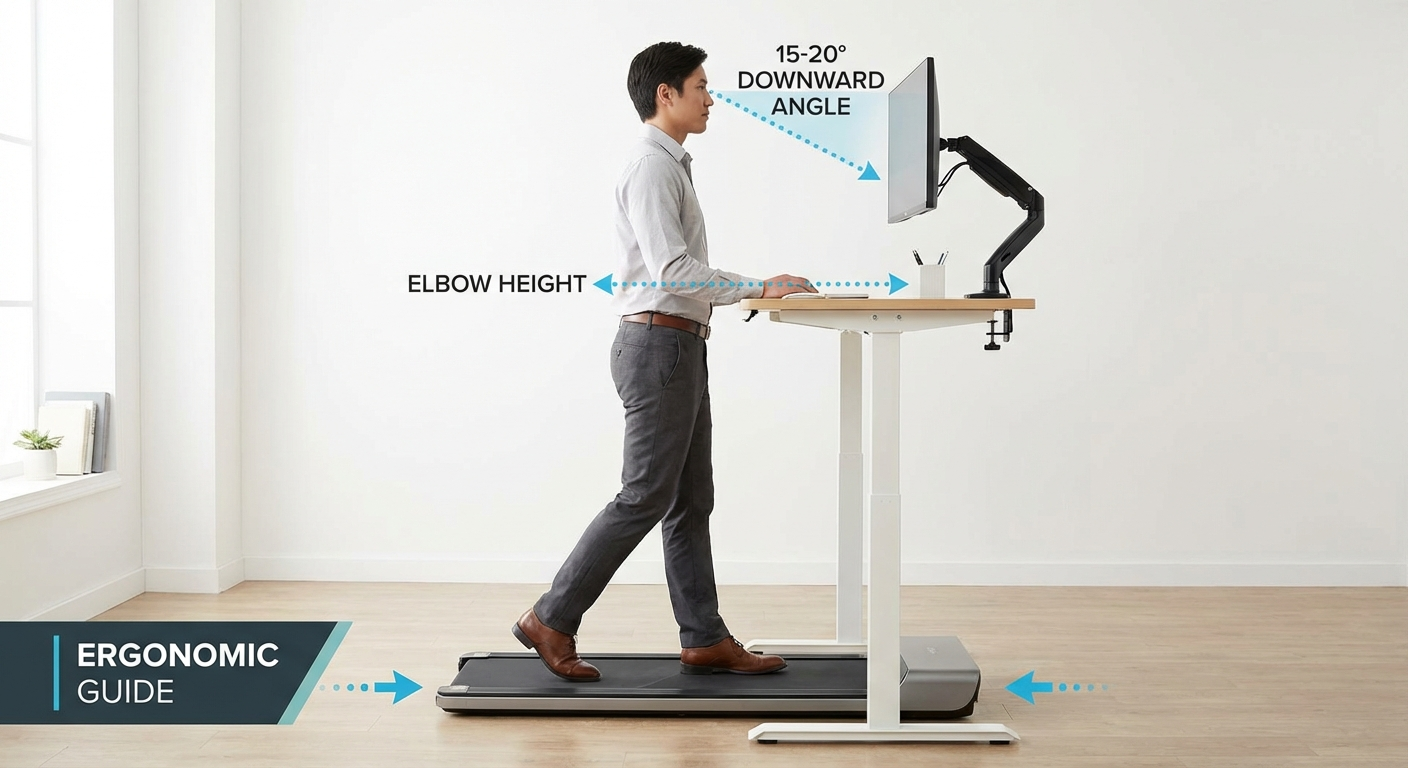 Position your monitor so the top of the screen sits at or just below eye level while walking.
The Problem
If your monitor is too low, you tilt your head downward to see the screen. Even 15 degrees of forward head tilt increases the effective load on your neck from approximately 12 pounds (the weight of your head) to 27 pounds. At 30 degrees, the load reaches 40 pounds. Sustained forward head posture while walking compounds this because your body is already managing the movement dynamics of walking — adding neck flexion creates a compounding strain pattern.
If your monitor is too high, you tilt your head backward, compressing the cervical spine and straining the posterior neck muscles. This is less common with walking pad setups but possible with wall-mounted monitors.
The Solution
| Setup Component | Target Position | Why |
|---|---|---|
| Monitor top edge | At or slightly below eye level | Prevents downward head tilt |
| Monitor center | 15–20° below horizontal gaze | Natural resting gaze angle |
| Monitor distance | 20–30 inches from eyes | Reduces eye strain; accounts for walking bounce |
| Monitor tilt | Slight upward tilt (5–10°) | Perpendicular to your gaze angle |
| Monitor stability | Arm-mounted, not on desk surface | Eliminates vibration transfer from walking pad |
Monitor Arm vs Monitor Stand
A monitor arm is strongly recommended over a fixed stand for walking pad setups:
- Height adjustment: Dial in the exact height for your walking eye level
- Depth adjustment: Push the screen further away to reduce bounce perception, pull it closer for detail work
- Vibration isolation: The arm's spring mechanism absorbs micro-vibrations from the desk that a fixed stand transmits directly to the screen
- Desk space: Frees the desk surface under the monitor for keyboard and mouse
A quality monitor arm ($30–80) is one of the most impactful accessories for a walking pad desk. It solves screen height, depth, and vibration in one device.
Dual Monitor Setup
If using two monitors, position them so the primary monitor is directly ahead and the secondary is angled 15–30 degrees to one side. Both monitors should have their top edges at eye level. When walking, turning your head to view a side monitor requires slightly more coordination than when standing still — keep the primary monitor centered to minimize head rotation during typing.
Keyboard and Mouse Placement
Desk Surface Height
Your keyboard should sit on the desk surface at elbow height (the measurement from Step 1). When your fingers rest on the home row, your forearms should be roughly parallel to the floor with your elbows at approximately 90 degrees. Wrists should be neutral — not bent up, down, or to the side.
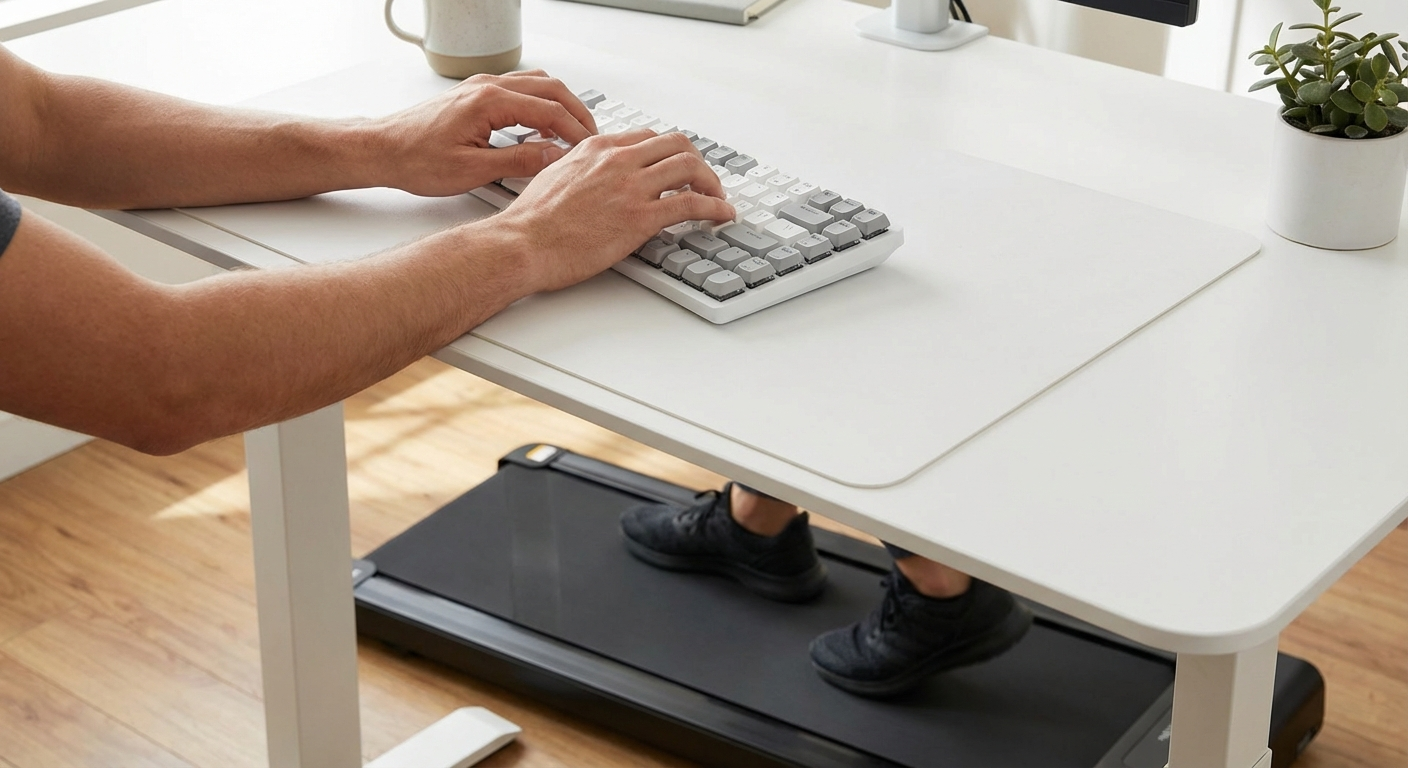 Neutral wrist position is essential — forearms parallel to the floor, wrists flat, not bent.
Keyboard Position
| Factor | Recommendation | Why |
|---|---|---|
| Distance from desk edge | 4–6 inches from the front edge | Room for wrist rest; prevents reaching |
| Tilt | Flat or slightly negative tilt | Reduces wrist extension |
| Wrist rest | Yes — padded, at keyboard height | Stabilizes wrists against walking bounce |
| Width | Compact/tenkeyless preferred | Keeps mouse closer to center, reduces reach |
The Walking Bounce Factor
Walking introduces a rhythmic vertical bounce to your arms. On each step, your hands rise and fall 0.5–1 inch relative to the keyboard. This micro-movement means your fingertips are not always at the same height relative to the keys — creating a slight inconsistency in keystrokes.
Solutions:
- Wrist rest: A padded wrist rest along the front edge of the keyboard provides a stabilizing contact point that dampens the bounce transfer to your fingers
- Light touch typing: Heavy key-pressing (bottoming out) amplifies the bounce effect. Light, floating touch reduces it
- Slower speed: Walking at 1.5 mph produces less bounce than 2.5 mph. If typing accuracy is critical (coding, writing), reduce speed
Mouse Considerations
A walking pad desk amplifies every mouse ergonomic issue. The vertical bounce affects cursor precision, and the arm swing suppression creates shoulder tension if the mouse is positioned too far from your body.
- Mouse position: Immediately beside the keyboard, at the same height. Do not place the mouse on a lower surface or further away from center — reaching increases shoulder load.
- Mouse type: An ergonomic vertical mouse reduces forearm pronation strain that is compounded by the static arm position during walking. For options, see our vertical mouse guides at verticalmouseguide.com.
- Mouse pad: A large pad (12" × 10" minimum) ensures the mouse does not slide off the edge during walking-induced arm movements.
Optimal Walking Speed for Work Tasks
Not all work tasks tolerate the same walking speed. Match your pace to your current activity:
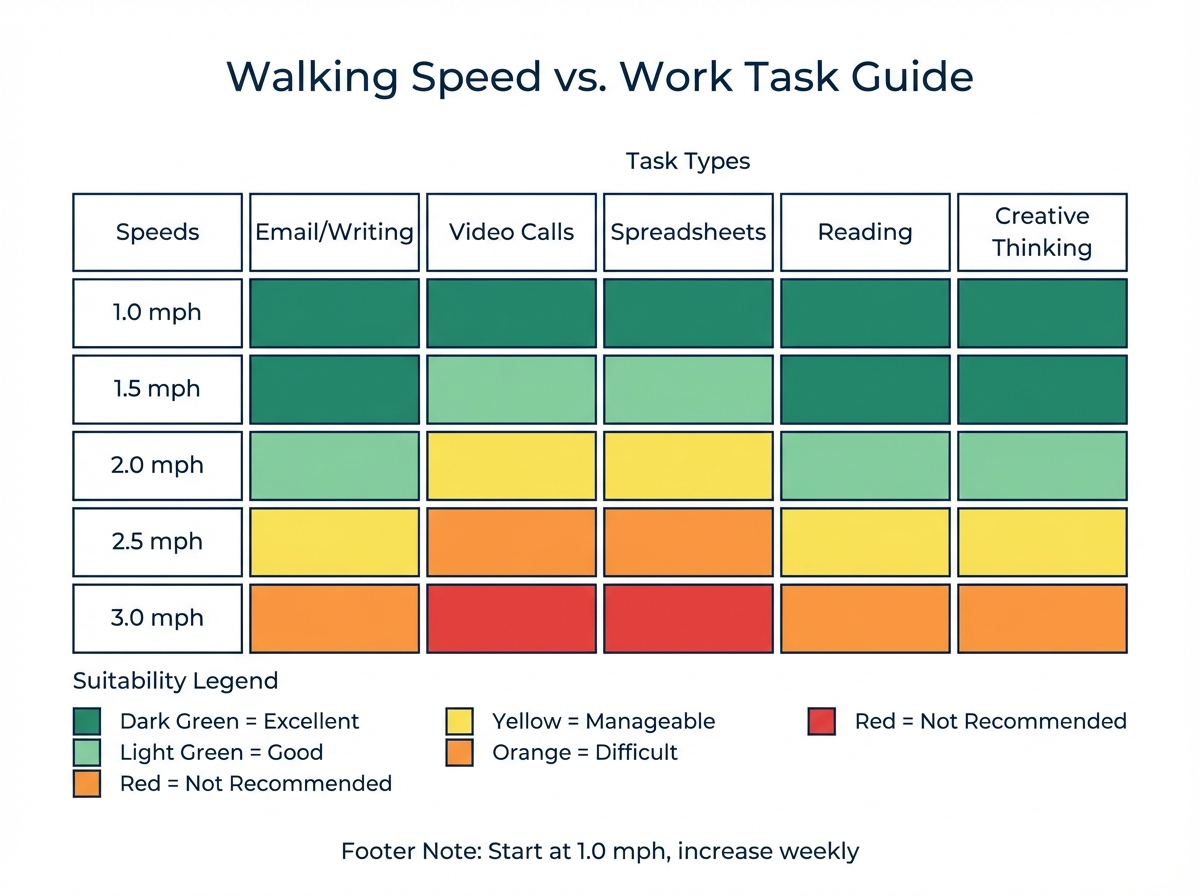 Walking Speed vs. Task Type: Match your speed to your work for maximum productivity.
Speed Guide by Task Type
| Speed | Task Suitability | Typing Impact | Calorie Burn (155 lb) |
|---|---|---|---|
| 1.0 mph | All tasks — typing, precision mouse, video calls | None | ~150 cal/hr |
| 1.5 mph | Typing, email, spreadsheets, browsing | Minimal (2–5% slowdown) | ~185 cal/hr |
| 2.0 mph | Standard desk work — the sweet spot for most users | Mild (5–10% slowdown) | ~210 cal/hr |
| 2.5 mph | Email, browsing, reading, light typing | Moderate (10–15% slowdown) | ~225 cal/hr |
| 3.0 mph | Reading, phone calls, video watching | Significant typing impact | ~260 cal/hr |
| 3.5+ mph | Dedicated exercise only — no productive desk work | Not viable | ~315+ cal/hr |
Speed-Switching Strategy
The most effective approach is dynamic speed adjustment throughout the day:
- Morning deep work (writing, coding): 1.5 mph — maximum typing accuracy
- Email and messaging: 2.0–2.5 mph — comfortable for short bursts of typing
- Video calls: 1.0–1.5 mph — minimizes visible body movement and microphone footstep noise
- Reading and reviewing documents: 2.5–3.0 mph — hands off the keyboard, higher calorie burn
- Phone calls (audio only): 3.0+ mph — no typing needed, maximize movement
- Standing desk break: 0 mph — stop the pad and stand for 10–15 minutes every 2 hours
For calorie comparisons between walking and other exercise options, see our walking pad vs exercise bike guide.
Posture Guide: What Good Form Looks Like
The Correct Walking Desk Posture
Head: Neutral, looking straight ahead at the screen center. Not tilted forward, backward, or to one side. Chin slightly tucked — imagine a string pulling the crown of your head toward the ceiling.
Neck and shoulders: Shoulders relaxed and down — not shrugged up toward your ears. This is the most common tension point during walking desk use. Consciously drop your shoulders every 30 minutes. Neck muscles relaxed, not bracing.
Upper back: Slight natural thoracic curve. Not rounded forward (kyphosis) and not military-rigid upright. Think "tall and relaxed."
Arms: Elbows at 90 degrees, close to your body — not flared out to the sides. Forearms roughly parallel to the desk surface. Upper arms hanging naturally, not reaching forward.
Wrists: Neutral — straight line from forearm through wrist to fingers. Not bent upward (extension), downward (flexion), or sideways (deviation). The wrist rest supports this neutral position.
Core: Lightly engaged — not clenched, but not collapsed. Walking naturally engages your core for balance. Let this happen without forcing it.
Hips: Pelvis neutral — not tilted forward (excessive arch in lower back) or tucked under. Walking on a pad tends to keep the pelvis in a more neutral position than standing still.
Gait: Heel-to-toe walking pattern. Smooth, quiet steps. Avoid stomping or shuffling — both create excessive bounce and noise. Think "gliding" rather than "marching."
Common Posture Breakdowns
| Problem | Cause | Fix |
|---|---|---|
| Forward head lean | Monitor too low | Raise monitor to eye level |
| Rounded upper back | Screen too far away or too low | Bring screen closer (20–24 inches) and raise |
| Shrugged shoulders | Desk too high or tension habit | Lower desk; set 30-minute shoulder-drop reminder |
| Wrist extension | Desk too high or no wrist rest | Lower desk to elbow height; add wrist rest |
| Wrist flexion | Desk too low | Raise desk to elbow height |
| Lower back arch | Core disengaged or walking too fast | Slow down; focus on gentle core engagement |
| Neck pain | Forward head tilt sustained during walking | Correct monitor height; reduce walking speed |
The Laptop Problem (and How to Fix It)
Laptops are the worst ergonomic match for a walking pad desk. The screen and keyboard are attached at a fixed distance — when the keyboard is at the right height, the screen is too low. When the screen is at the right height, the keyboard is too high.
The Problem in Numbers
A laptop on the desk surface at elbow height positions the screen 10–15 inches below eye level. To see the screen, you tilt your head forward 25–40 degrees. At 30 degrees, the effective load on your neck is 40 pounds. Now add walking bounce. The combination produces neck and upper back pain within 30–60 minutes — faster than sitting with the same setup because walking amplifies the postural compensation.
The Fix
Required equipment:
- Laptop stand or monitor arm with laptop tray — raises the laptop screen to eye level
- External keyboard — placed on the desk surface at elbow height
- External mouse — beside the keyboard at the same height
This separates the screen (at eye level) from the input devices (at elbow level) — the fundamental ergonomic principle for any workstation. The laptop becomes a screen, and the external keyboard and mouse become your input devices.
Budget option (~$50 total): Laptop stand ($15–25) + basic external keyboard ($15–20) + basic mouse ($10–15).
Better option (~$120 total): Monitor arm with laptop tray ($40–60) + quality keyboard ($40–60) + ergonomic mouse ($20–40).
Best option (~$250–400): External monitor on a monitor arm ($150–300) + quality keyboard + ergonomic mouse. Using a separate monitor is ergonomically superior to raising a laptop because external monitors are larger, offer better adjustability, and eliminate the laptop's small viewing angle.
Essential Accessories
Must-Have (Ranked by Impact)
| Accessory | Why It Matters | Price Range |
|---|---|---|
| Adjustable-height desk | The foundation — must accommodate 4–6" height increase from pad | $200–600 |
| Monitor arm | Precise height/depth control, vibration isolation | $30–80 |
| External keyboard (if using laptop) | Separates screen height from typing height | $15–60 |
| Anti-vibration mat | Reduces pad noise, protects floors, dampens vibration | $20–40 |
| Supportive shoes or insoles | Walking barefoot for hours causes foot fatigue and arch pain | $20–80 |
| Wrist rest | Stabilizes wrists against walking bounce | $10–25 |
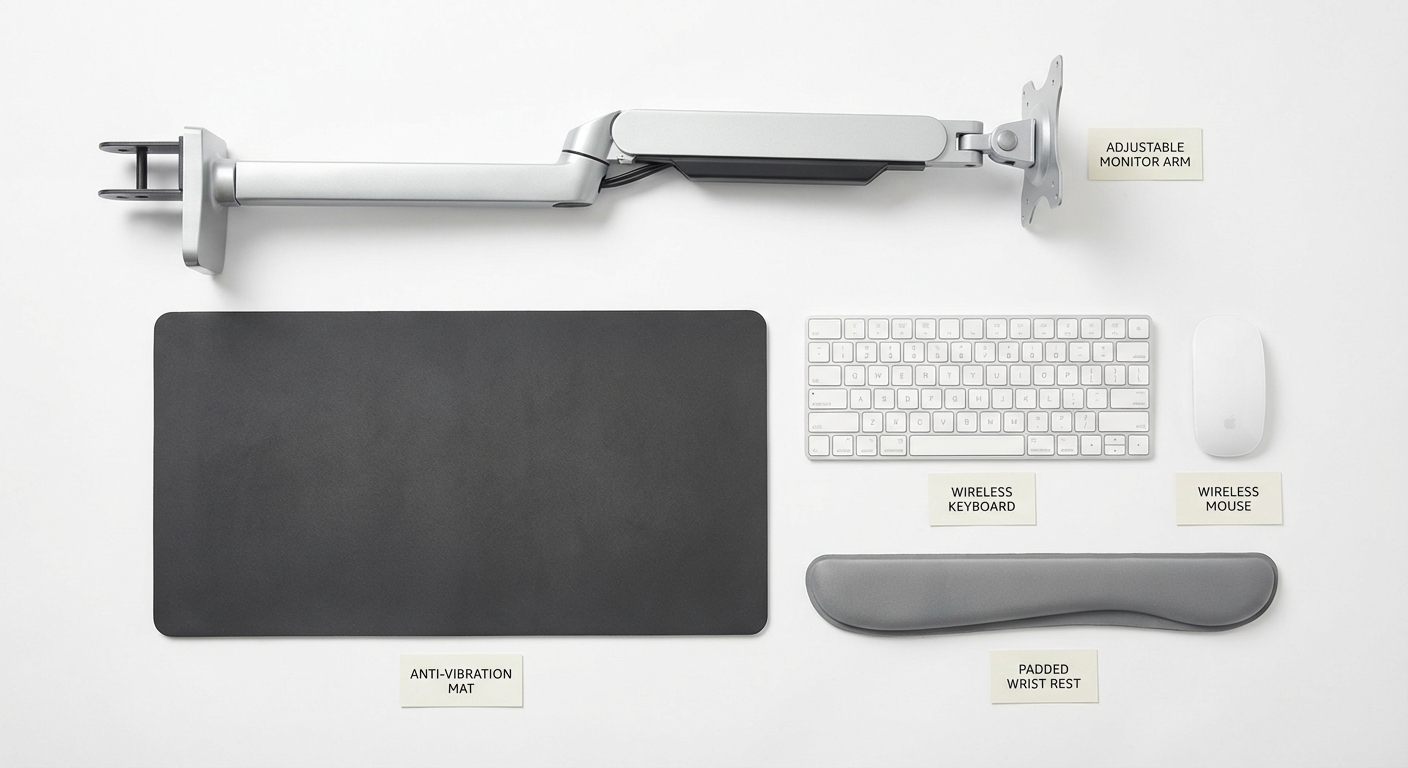 Five accessories that make or break a walking pad desk setup.
Recommended (Quality of Life)
| Accessory | Why It Helps | Price Range |
|---|---|---|
| Cable management tray | Keeps cords above and away from the walking belt | $15–30 |
| Small desk fan | Walking generates body heat — airflow prevents overheating | $15–30 |
| Wireless keyboard and mouse | Eliminates cable drag and tangling near the pad | $30–80 |
| Compact/tenkeyless keyboard | Keeps mouse closer to center, reduces reach strain | $30–80 |
| Anti-fatigue mat (for standing breaks) | Comfort during static standing periods between walks | $20–40 |
| Walking pad speed remote | Clip-on remote for speed changes without bending to the pad | Often included |
The Shoe Question
Do not walk barefoot on a walking pad for extended periods. The flat belt surface provides no arch support, and the repetitive flat-surface walking pattern stresses the plantar fascia. Options:
- Cushioned walking shoes: The best option. Lightweight, supportive, with cushioned soles.
- Cushioned insoles in any shoe: $15–30 insoles in lightweight shoes provide adequate support.
- Thick cushioned socks: A budget compromise. Better than barefoot, not as supportive as shoes.
- Barefoot: Acceptable for 30–60 minutes. Not recommended for 2+ hours.
For walking pad size and weight considerations, see our best walking pad for small apartments guide.
Common Setup Mistakes
1. Not Adjusting Desk Height After Adding the Pad
The most common mistake. Your standing desk was set for standing on the floor. The walking pad adds 4–6 inches. If you do not raise the desk, your keyboard is now at hip height instead of elbow height — forcing your wrists into extension and your shoulders into a shrug. Raise the desk before your first walking session.
2. Looking Down at a Laptop
The second most common mistake and the fastest path to neck pain. A laptop screen on the desk surface is too low by 10–15 inches. Raise it or use an external monitor. See the laptop section above.
3. Walking Too Fast Too Soon
Starting at 3.0 mph on day one leads to typing errors, frustration, and excessive fatigue. Start at 1.0 mph. Increase by 0.5 mph per week. Your body adapts to walking while working the same way it adapts to any new movement pattern — gradually.
4. No Anti-Vibration Mat
Without a mat, the walking pad transmits vibration through the floor to your desk (especially if they are on the same floor surface). The vibration makes your monitor shake subtly and can travel to downstairs neighbors in apartments. A $20–40 anti-vibration mat eliminates this.
5. Cords Near the Walking Belt
Keyboard cables, charging cables, and headphone cords that hang near the walking belt are a snag and trip hazard. Route all cables through a management tray above desk height, never below or near the pad. Wireless peripherals eliminate this risk entirely.
6. No Breaks
Walking for 6 straight hours without stopping causes foot fatigue, lower back stiffness, and reduced benefits from the final hours as your posture degrades. Take a 10–15 minute standing or sitting break every 90–120 minutes. Your body and your focus will be better for it.
Daily Routine: Sitting, Standing, and Walking
The ideal walking pad desk routine is not "walk all day." It is a rotation of sitting, standing, and walking that keeps your body moving through different positions.
Sample Schedule
| Time | Position | Speed | Activity |
|---|---|---|---|
| 8:00–9:30 | Walking | 2.0 mph | Email, morning admin, planning |
| 9:30–9:45 | Standing | — | Break, coffee, stretch |
| 9:45–11:15 | Walking | 1.5 mph | Deep focus work — writing, coding |
| 11:15–11:30 | Sitting | — | Brief sitting rest, snack |
| 11:30–12:30 | Walking | 2.5 mph | Meetings, calls, lighter tasks |
| 12:30–1:30 | Sitting | — | Lunch break away from desk |
| 1:30–3:00 | Walking | 2.0 mph | Afternoon work block |
| 3:00–3:15 | Standing | — | Stretch, movement break |
| 3:15–4:30 | Walking | 1.5 mph | Final deep work block |
| 4:30–5:00 | Sitting | — | End-of-day wrap-up, planning |
Totals
- Walking: 5.5 hours (~11,000–14,000 steps, ~800–1,000 calories burned)
- Standing: 30 minutes
- Sitting: 2 hours
- Daily step count: 11,000–14,000 (varies by speed)
This rotation prevents the fatigue and posture degradation that comes from any single position held too long — sitting, standing, or walking. The variety is what makes the setup sustainable long-term.
Week 1 Adaptation Schedule
If you are new to walking while working, do not start with 5.5 hours on day one:
| Day | Walking Time | Speed |
|---|---|---|
| Day 1 | 1 hour | 1.0 mph |
| Day 2 | 1.5 hours | 1.0–1.5 mph |
| Day 3 | 2 hours | 1.5 mph |
| Day 4 | 2.5 hours | 1.5 mph |
| Day 5 | 3 hours | 1.5–2.0 mph |
| Week 2 | 3–4 hours | 2.0 mph |
| Week 3 | 4–5 hours | 2.0–2.5 mph |
| Week 4+ | 4–6 hours | Your optimal range |
Build gradually. Your feet, legs, and focus all need time to adapt to sustained walking while working. For weight-related considerations, see our walking pad weight limit guide.
Walking Pad Desk Setup: Pros and Cons
Before committing to a walking pad desk, here is an honest assessment:
Pros
- Burns calories passively — 100–200 extra calories per hour vs sitting, without disrupting work
- Reduces sedentary time — breaks the sit-all-day pattern linked to metabolic and cardiovascular risk
- Improves afternoon energy — light movement prevents the post-lunch energy dip most desk workers experience
- Easy posture variation — natural movement cycle between sitting, standing, and walking throughout the day
- Sustainable long-term — walking at 1.5–2.5 mph is low-impact enough for daily multi-hour use
Cons
- Typing speed drops initially — expect 1–3 weeks to fully adapt; fast typists notice it most
- Monitor bounce — vibration from the pad can cause perceived screen shake; requires anti-vibration setup
- Foot and leg fatigue — walking 3–4 hours requires supportive footwear; barefoot use causes discomfort
- Higher setup cost — adjustable-height desk + monitor arm + walking pad = $800–$2,000 total investment
- Noise in shared spaces — walking pads produce 55–75 dB; unsuitable for open offices or calls without headset
Getting your walking pad desk ergonomics right from day one prevents the strain patterns that force most people to abandon their setup within a month.
Frequently Asked Questions
What is the correct desk height for a walking pad setup?
Your desk surface should be at elbow height while standing on the walking pad — typically 38–46 inches from the floor. The walking pad adds 4–6 inches, so you need an adjustable desk set higher than normal standing height. Measure with your walking shoes on and arms hanging relaxed.
What speed should I walk at while working?
1.5–2.0 mph is the sweet spot for typing. Start at 1.0 mph your first week. At 2.0 mph, most people type with only 5–10% slower speed. Above 3.0 mph, typing becomes impractical. Match speed to task: slower for precision work, faster for reading and calls.
How high should my monitor be?
The top of the screen should be at or slightly below eye level while walking. Use a monitor arm for precise adjustment. The screen center should be 15–20 degrees below horizontal gaze. Measure while walking, not standing still — walking changes your eye height.
Do I need a standing desk?
Yes. A standard sitting desk is far too low. You need a surface at 38–46 inches. An electric adjustable desk is ideal — it lets you switch between sitting, standing, and walking throughout the day. Do not stack items on a regular desk to improvise.
Can I use a laptop on a walking pad desk?
Yes, but raise the screen to eye level with a laptop stand and use an external keyboard and mouse at desk height. A laptop directly on the desk forces 25–40 degrees of neck flexion — causing pain within 30–60 minutes, worse with walking bounce.
Will walking hurt my wrists while typing?
Not if desk height is correct and wrists are neutral. Walking introduces slight arm bounce — a wrist rest helps stabilize against this. If you experience wrist pain, check desk height first (most common cause). The desk should position your forearms parallel to the floor.
How do I stop monitor bounce?
Anti-vibration mat under the pad, desk on a separate surface from the pad, monitor on an arm (spring absorbs vibration), slower walking speed, heel-to-toe gait, and positioning the monitor at 24–30 inches (further reduces perceived bounce).
What accessories do I need?
Essential: adjustable desk, monitor arm, anti-vibration mat, supportive shoes, wrist rest. If using a laptop: external keyboard and mouse. Recommended: cable management tray, desk fan, wireless peripherals. Budget all-in: approximately $300–500 beyond the walking pad and desk.
Sources and Methodology
This guide provides ergonomic setup recommendations for walking pad desk configurations based on occupational health standards and workstation ergonomic principles.
Ergonomic Standards and Guidelines:
- OSHA: Computer Workstation eTool — monitor height, keyboard position, and workstation adjustment guidelines — osha.gov
- NIOSH: Elements of Ergonomics Programs — workstation design for musculoskeletal disorder prevention — cdc.gov/niosh
- ANSI/HFES 100-2007: Human Factors Engineering of Computer Workstations — desk height, screen angle, and input device positioning standards
Posture and Biomechanics References:
- Cervical spine load research: forward head tilt increases effective cervical load from ~12 lbs at neutral to ~40 lbs at 30 degrees flexion — consistent with published cervical biomechanics literature
- Gait biomechanics: treadmill walking at slow speeds (<3.0 mph) produces 0.5–1.5 inches of vertical oscillation per step
Treadmill Desk Research:
- Research on treadmill desks and typing performance indicates maintained or minimally reduced typing speed at walking speeds under 2.0 mph
- CDC: Physical Activity Guidelines — reducing sedentary behavior through integrated movement during work hours
Methodology notes:
- Desk height ranges (38–46 inches) are calculated from average adult heights (5'2"–6'2") with typical walking pad heights (4–5 inches) and footwear (0.5–1.5 inches)
- Walking speed recommendations are based on aggregated user experience and treadmill desk research indicating minimal typing impact below 2.0 mph
- Calorie estimates use MET values from the Compendium of Physical Activities for walking at specified speeds
- Equipment recommendations are based on ergonomic principles, not brand partnerships
- This guide provides ergonomic information, not medical advice. For persistent pain or existing musculoskeletal conditions, consult a physician or occupational therapist
- We may earn a commission on purchases at no additional cost to you; affiliate relationships do not influence our recommendations
Internal links referenced:
Visual Guide Gallery